VisorBot repeats the things you do on your phone. You show it a task once, or describe the task in a sentence, and it keeps the steps as a recipe you can run again whenever you like. This page takes you from install to a first recipe. The example is a small one: a weekend grocery checklist in Google Keep.
Install
VisorBot runs on Android 11 or newer. No root.
Install VisorBot from Google Play. Updates arrive on their own.
Do you use the old version that you downloaded from this site? The move guide shows how to move to the Google Play version and keep your recipes.
Sign in
VisorBot needs an account. Sign in with Google, or with an email address and a password.
If you sign up with an email address, VisorBot sends you a link. Tap it to unlock your free AI credits. Capturing and running recipes work right away, with or without the link. Google sign-in needs no extra step.
Turn on two permissions
A setup screen walks you through these, with a live status for each one.
- Accessibility. This is how VisorBot taps, swipes, types and reads the screen. Nothing works without it.
- Display over other apps. This draws the small bot bubble that floats over the app you are using.
Notifications is a third, optional one on Android 13 and newer. It lets VisorBot tell you how a run ended.
Meet the bubble
Tap Start Overlay on the home screen, then open the app you want to automate. The bot bubble floats on top of it. Tap the bubble to open the menu:
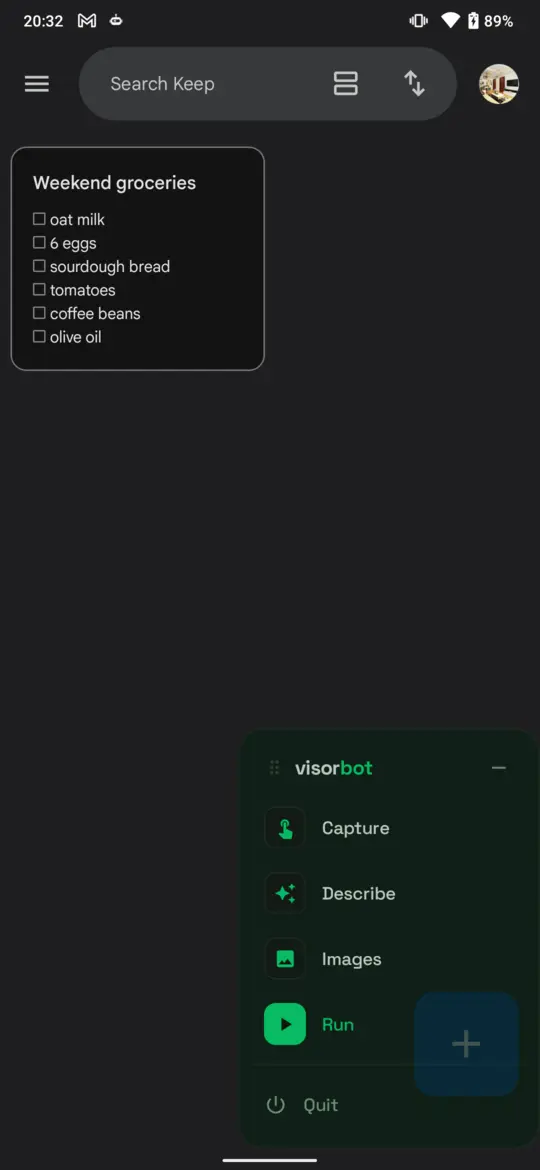
- Describe: tell the AI what you want and it drafts the recipe.
- Capture: make the recipe yourself, one step at a time.
- Images: the pictures your recipes look for on the screen.
- Run: play a saved recipe.
You can drag the bubble anywhere. It stays out of your recipes: VisorBot never reads or taps its own panel.
Way 1: describe the task
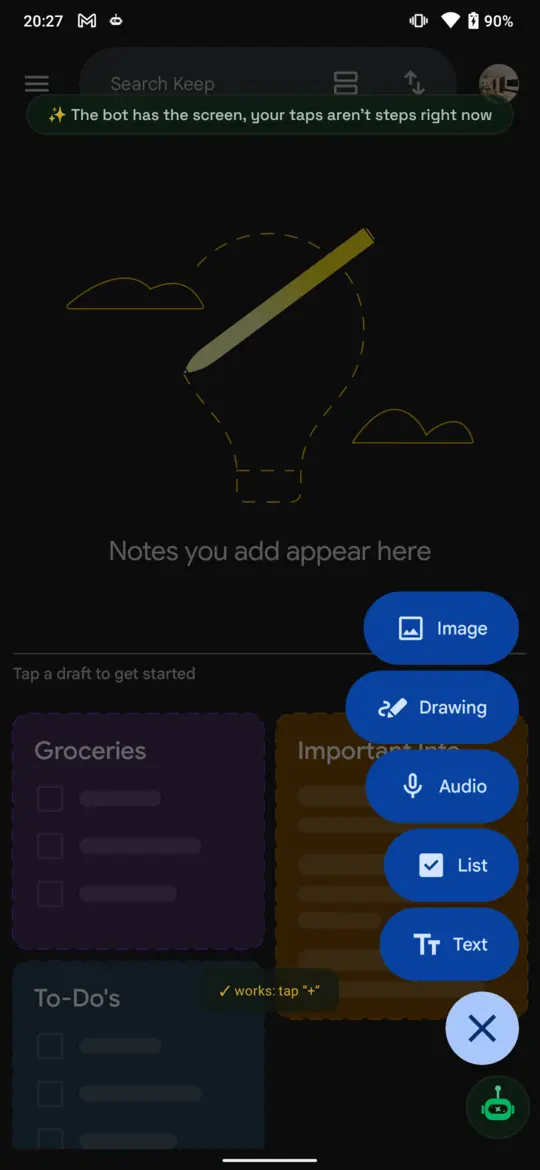
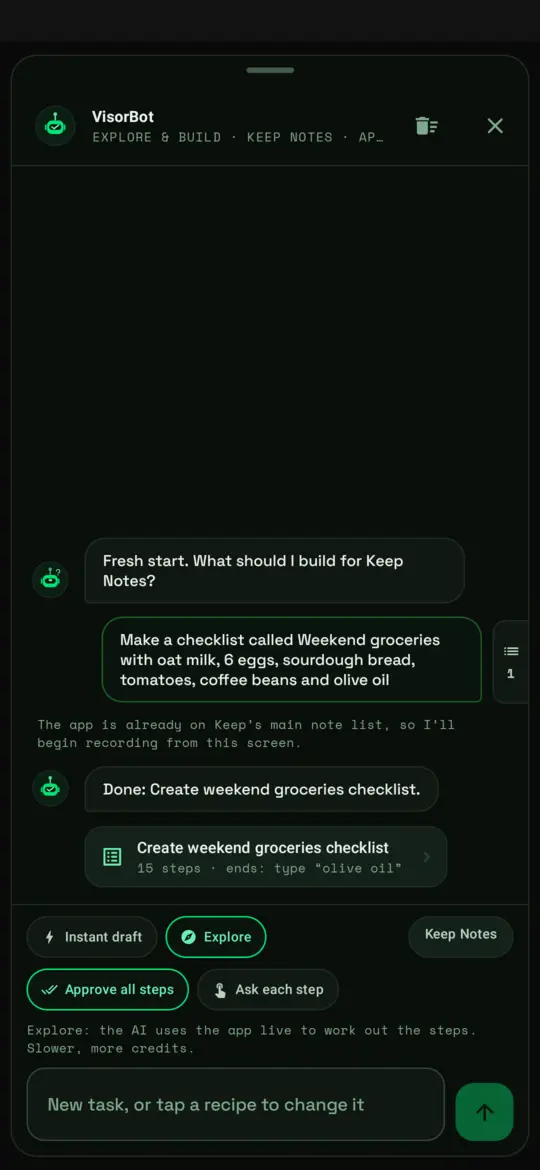
Tap Describe and type what you want, the way you would say it to a friend. From request to recipe, left to right:
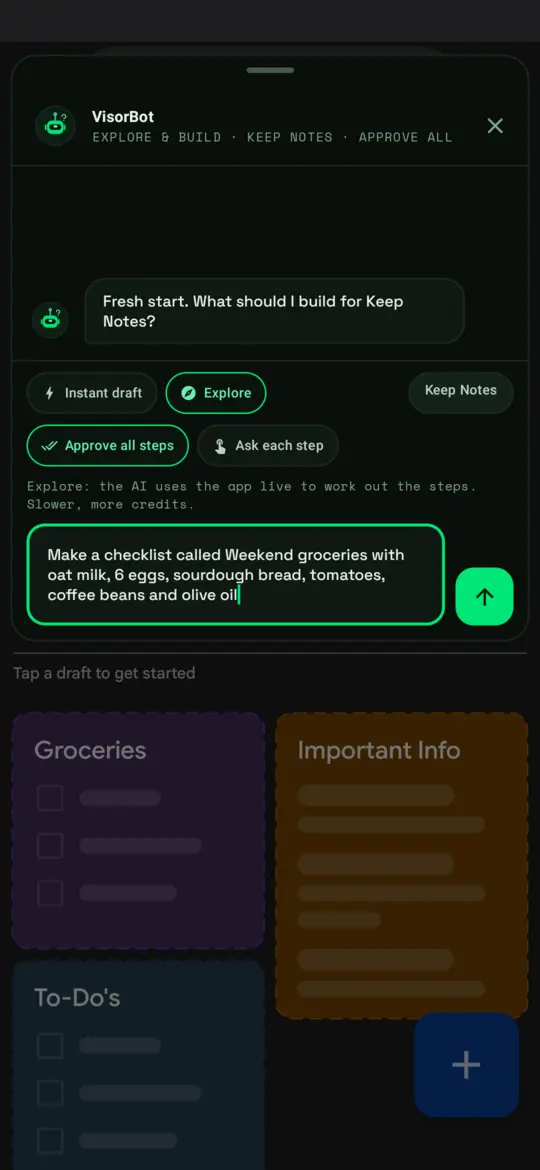
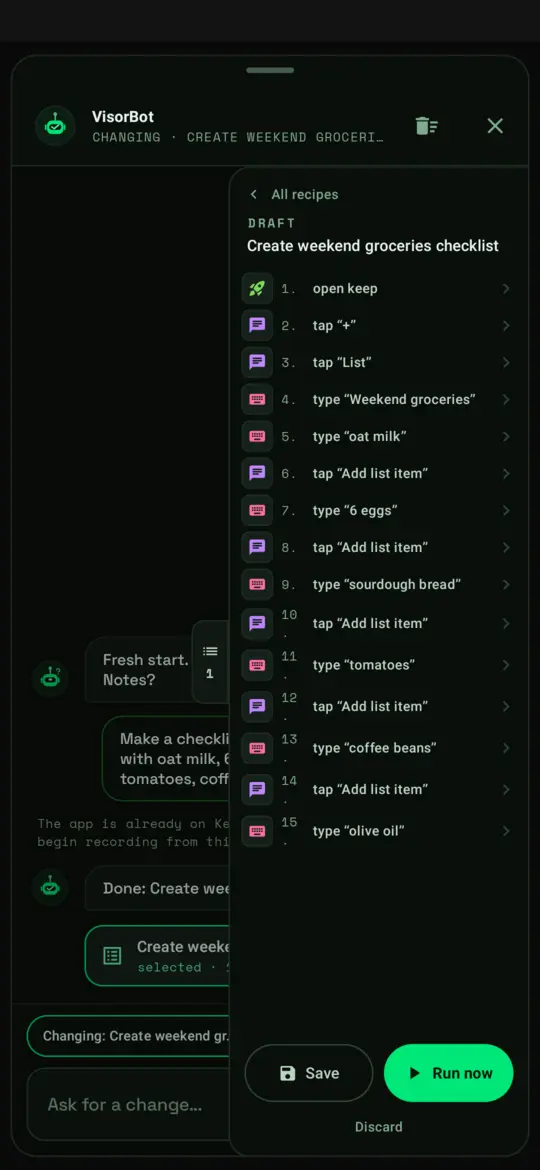
Two pairs of chips above the message box decide how the AI works:
- Instant draft writes all the steps at once from your description. Fast, fewer credits. Explore uses the app live to work out the steps. Slower, more credits, and better when the task crosses several screens.
- Approve all steps lets the AI try each step without asking. Ask each step makes it wait for your Yes before every action.
In Explore the AI tries each step on the real app and keeps only what worked. You can read its short notes while it goes, and the Stop button halts it at any time. When it finishes, the recipe appears as a card in the chat.
Tap the card to see the steps. Tap any step to edit it. Whatever you type next changes this recipe, so “also add butter” works. Run now plays it, Save keeps it, Discard throws it away. Nothing is saved until you say so.
Each AI task uses credits. Every plan, the free one too, includes some. Pricing has the numbers, and Build with AI covers the chat in depth.
Way 2: capture it yourself
Tap Capture. A bar appears along the bottom of the screen and VisorBot starts to watch what you do.
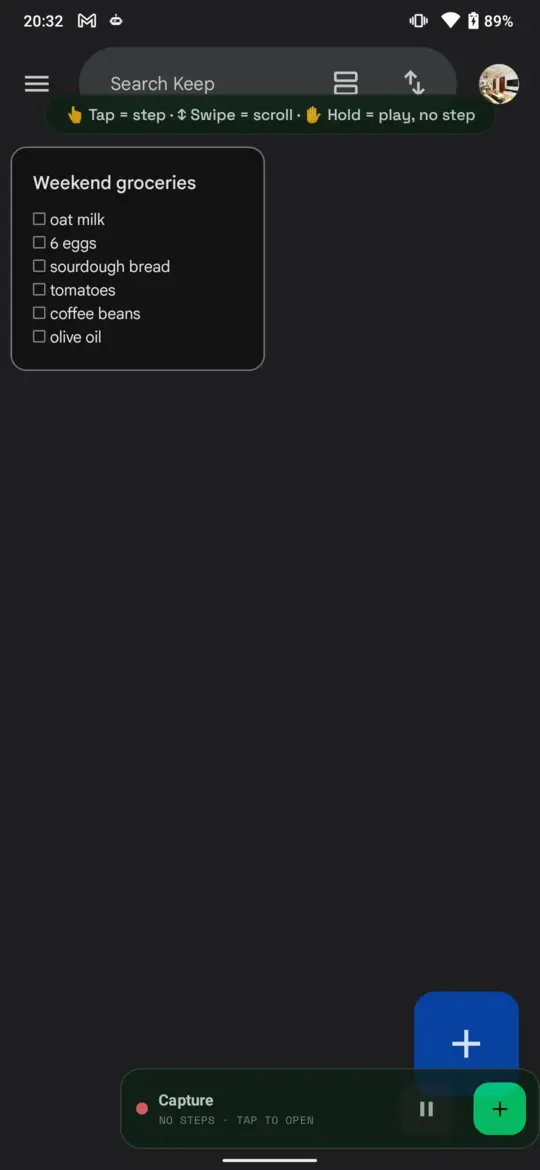
- Tap something and the tap becomes a step.
- Swipe and it becomes a scroll step.
- Hold to use the app normally without making a step.
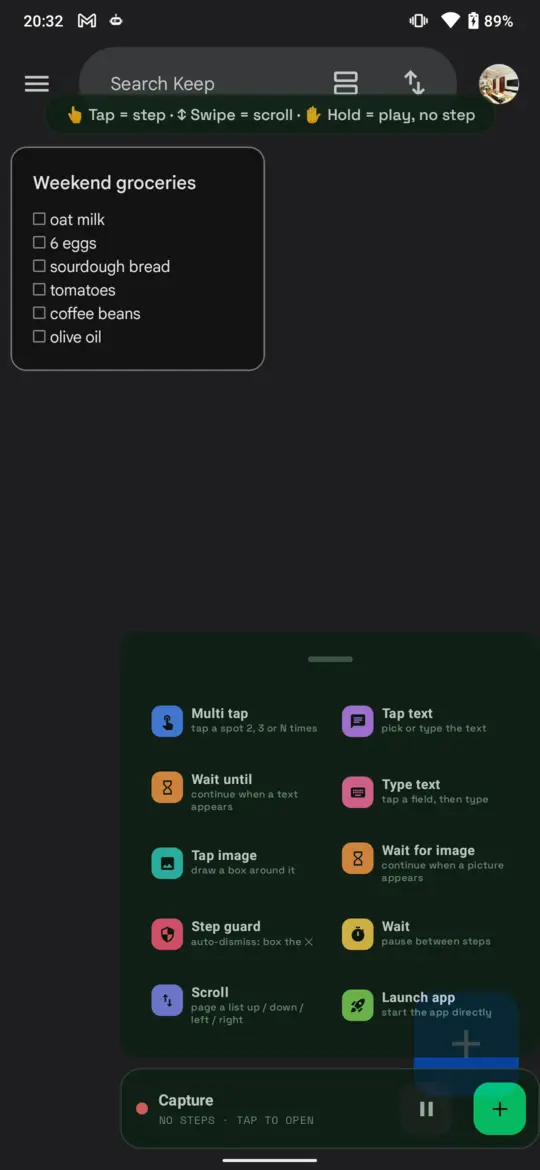
Tap the green + for the toolbox when a plain tap is not enough.
Tap text finds a word wherever it is on the screen, so the step still works when the button moves. Tap image does the same for an icon with no words. Type text asks which box to type into, then what to type. Wait until holds the recipe until a word shows up, which is what a slow screen needs.
Tap the bar to open the recipe. There you can reorder steps, edit one, undo, and Save. Build a recipe by hand goes through every tool.
Run it
Tap the bubble, choose Run, and pick your recipe. The panel shows each step as it happens and the X stops the run at once. Saved recipes are also on the Recipes tab of the app, and History keeps every run. When a step fails, History keeps a screenshot of the moment it failed, which is usually enough to see why.
Good to know
- VisorBot never taps on ads. A step that would close or tap an ad is skipped, and the run tells you why.
- Typing works by pasting, so a run replaces whatever you had copied. Passwords are never pasted.
- The plan you are on sets how long recipes can run in a day and how many you can keep. Settings shows what is left.
Next
- Build with AI: get more from the chat.
- Writing a good request: what to say so the first draft is right.
- Build a recipe by hand: every Capture tool.