
Capture is how you make a recipe yourself. You use the app as you normally would, and VisorBot turns what you do into steps. It is the precise way to build: you choose every step, and each one tests itself the moment you add it. Capturing uses no AI credits.
Start capturing
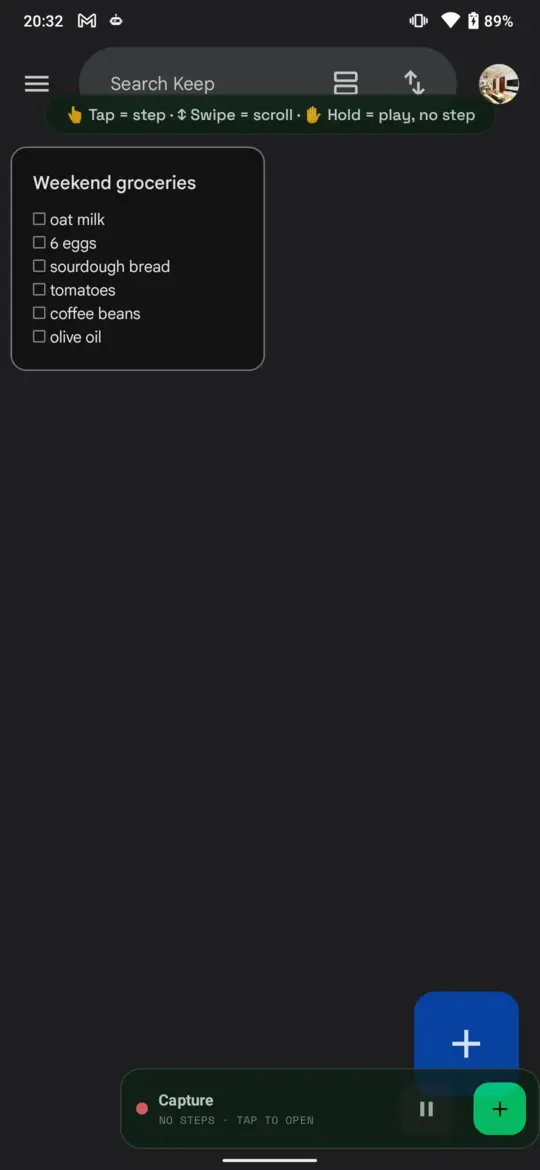
Tap Start Overlay on the home screen, open the app you want to automate, then tap the bubble and choose Capture. A bar appears along the bottom and VisorBot starts to watch what you do. The hint on the screen says it all:
Tap = step, Swipe = scroll, Hold = play, no step.
- Tap something and the tap becomes a step.
- Swipe and it becomes a scroll step.
- Hold to use the app normally without making a step. Use it to get past a screen you do not want in the recipe.
The bar shows the recipe name, the step count, pause and a green +.
Every step tests itself
When you add a step, VisorBot runs it for real and tells you the result. works means it found the target and hit it. If it did not work, you know now, not halfway through a run next week.
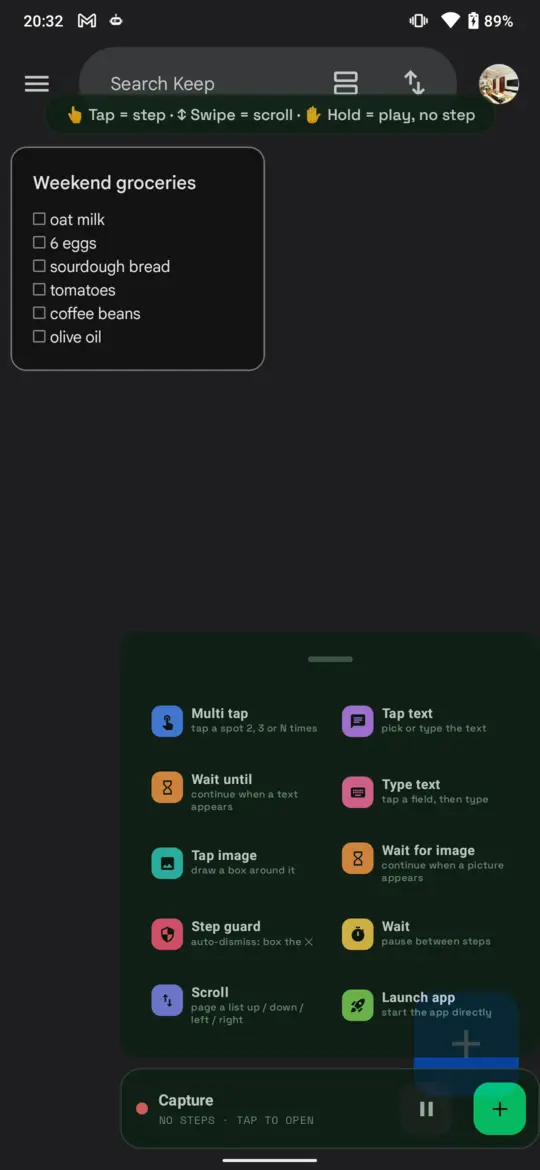
The toolbox: ten building blocks
Tap the green +. Each tool has its own colour in the app.
| Tool | What it does | Good for |
|---|---|---|
| Multi tap | Taps a spot 2, 3, 5, 10 or any number up to 100 times, with the gap you choose | Double tap, “tap 20 times” |
| Tap text | Finds a word on the screen and taps it, wherever it is | Buttons that move, other phones |
| Wait until | Holds the recipe until a word appears | Slow screens |
| Type text | Asks which box to type into, then what to type. Can press Search or Enter after | Forms, searches, messages |
| Tap image | Draw a box round an icon once. VisorBot matches the picture from then on | Icons with no words |
| Wait for image | Holds until a picture appears | Picture-only screens |
| Step guard | Box a popup’s X once. It is closed for you whenever it shows up | Notices, rating popups |
| Wait | A fixed pause | Pacing |
| Scroll | Pages a list up, down, left or right | Long lists |
| Launch app | Starts the app, so a recipe can run from the home screen | First step of most recipes |
Text or image?
Use Tap text when the button has words. It keeps working when the button moves, and on a phone with a different screen. Use Tap image when there are no words to read, such as a camera switch icon. A picture tap that is not sure enough fails and says so. It does not tap a look-alike and call it a success.
Wait until beats Wait
A fixed Wait is a guess. Wait until watches for a word and moves on the moment it appears, so the recipe is as fast as the app allows and does not break on a slow day.
The step list
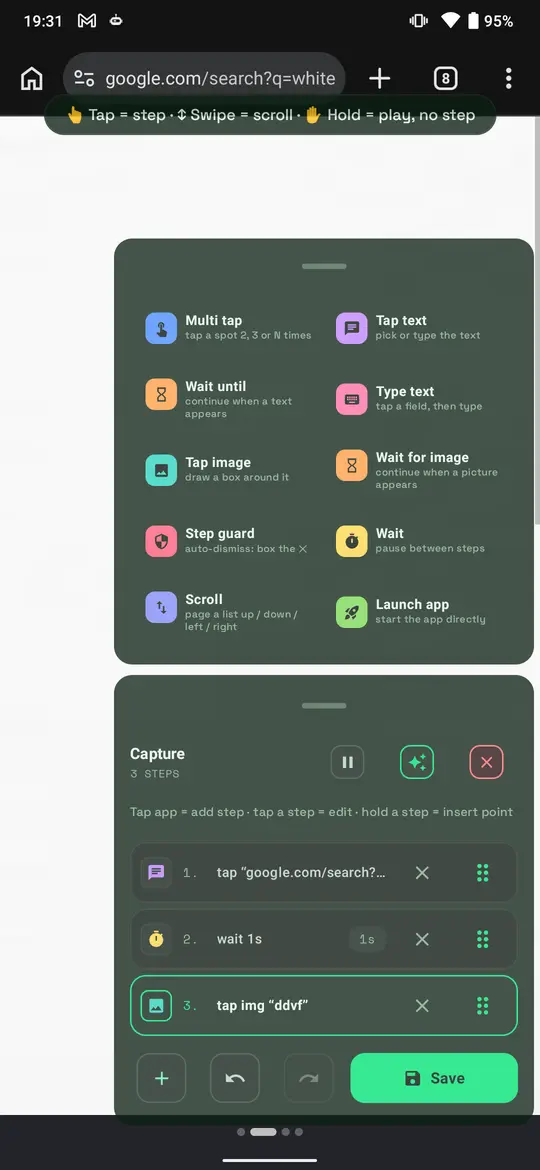
Tap the bar to open the recipe. Each step is a card.
- Drag the handle to reorder. Tap a step to edit it. The X removes it.
- Tap a wait’s chip to change its length.
- Hold a step to insert a new one in the middle.
- Undo and redo sit at the bottom next to Save.
The pause added between captured steps is a setting: Settings, “wait between captured steps”.
What a recipe can do beyond the toolbox
The AI builds these when a task needs them, and you can edit them afterwards:
- Repeat steps a set number of times, or until something appears.
- If and else, for screens that are not always the same.
- Scroll until a word or picture comes into view.
- Mark a step optional, so a missing popup does not fail the run.
- Set a time or a date in Google’s pickers.
- Press Back, Home or Enter.
To get one of these, select the recipe in Describe and ask: “repeat the last two steps five times”.
Save and run
Tap Save and give the recipe a name. It is now in the Recipes tab and in the bubble’s Run menu. A floating panel shows each step as it happens, and the X stops the run at once. Recipes run only when you start them.
Chain several together, at the bottom of the Run panel, links saved recipes into one routine that runs start to finish with one tap.
When a run fails
History keeps every run and what each step did, with a screenshot of the moment a step failed. The usual causes are a slow screen, a button that moved, or a popup in the way.
- Teach the fix: show the right target once and the recipe is patched. You can close a popup (this saves a step guard), tap something else instead, wait longer, or mark the step optional.
- AI fix: the AI suggests a repair, which you approve before it is saved.