Your clicker keeps tapping the old spot, but the button has moved. An Android auto clicker that finds the button by its words can handle that change without you recording the tap again.
I build VisorBot. If all you need is a steady tap on a button that stays put, a plain clicker may be enough. VisorBot is useful when the task also needs to wait for a screen, type into a field or get past a known popup. You save those steps as a recipe and start it yourself.
You’ll need an account and Android 11 or newer. No root. The VisorBot setup guide covers installation and the permissions.
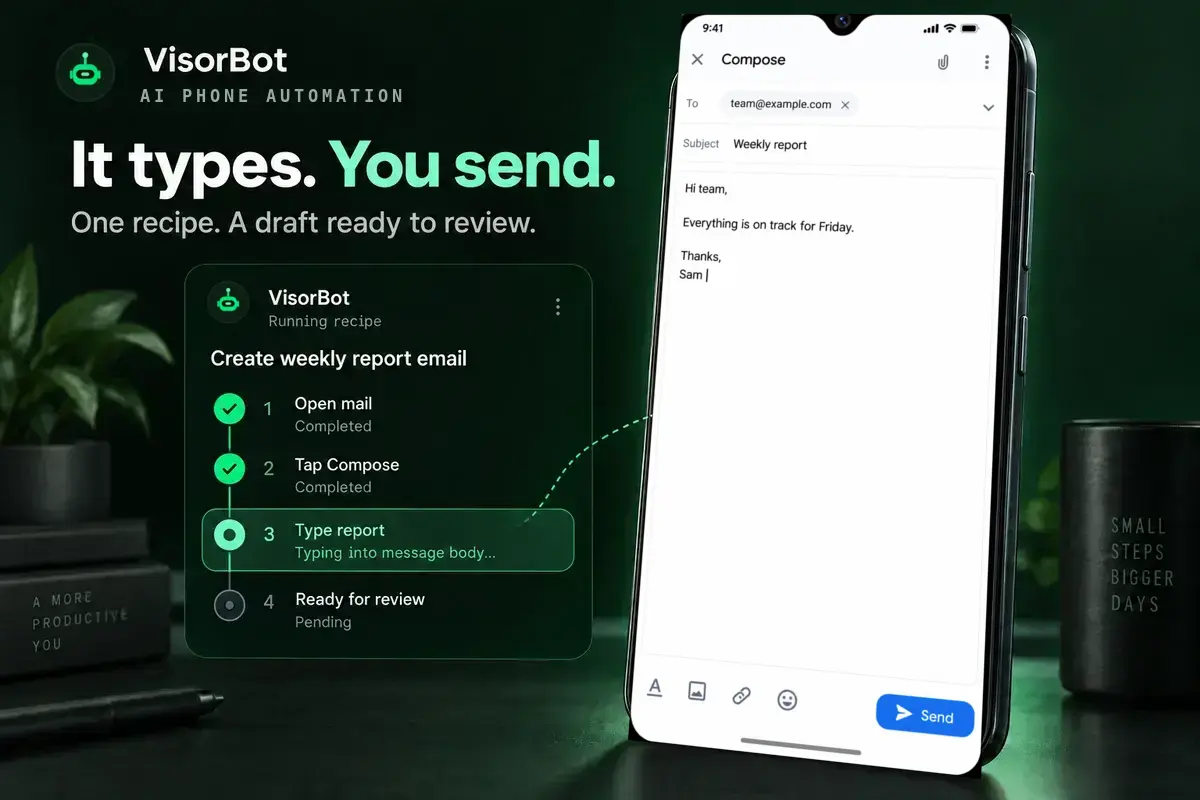
A mail routine fills the draft so you can review it before Send. Generated product visualization; the apps and step panels are simplified.
Which Android auto clicker does your task need?
I’d choose by what can change on the screen, rather than by how fast a tool can tap.
- Tap one unmoving spot repeatedly? A plain clicker is enough, or Multi tap in VisorBot.
- Tap a button that moves but keeps its label? Tap text.
- Tap an icon with no words? Tap image.
- Continue only after a screen finishes loading? Wait until for a word, or Wait for image.
- Close a known popup that appears sometimes? Step guard.
Multi tap does up to 100 taps in one step, with a gap you choose. For more than 100, put that step inside a repeat. The Multi tap guide explains how to set it up.
For a button with words, my first choice is Tap text. If “Add item” moves down because the checklist got longer, the label still tells the recipe what to look for. There’s no reason to save a picture of a readable label.
Tap image has its place. It also deserves a little more care.
During development, our saved-picture taps could hit a similar-looking icon, or even an empty spot, and report success. We changed that behavior: when VisorBot isn’t sure enough about the picture match, the step fails and says so. I’d rather see a failed step than have the recipe carry on from the wrong screen.
How do I make my first tap recipe?
Start with a small job you can watch from beginning to end. One button is enough to learn Capture.
- Tap Start Overlay in VisorBot, then open the app you want to use.
- Tap the bubble and choose Capture.
- Tap the button. VisorBot adds the step and tests it.
- Open the step list from the Capture bar. Tap Save, then name the recipe and confirm.
- Open the bubble’s Run menu, pick the recipe and watch it once.
The green + opens the toolbox below. Use Tap text for a labeled button, or Multi tap when you need a burst at one spot.
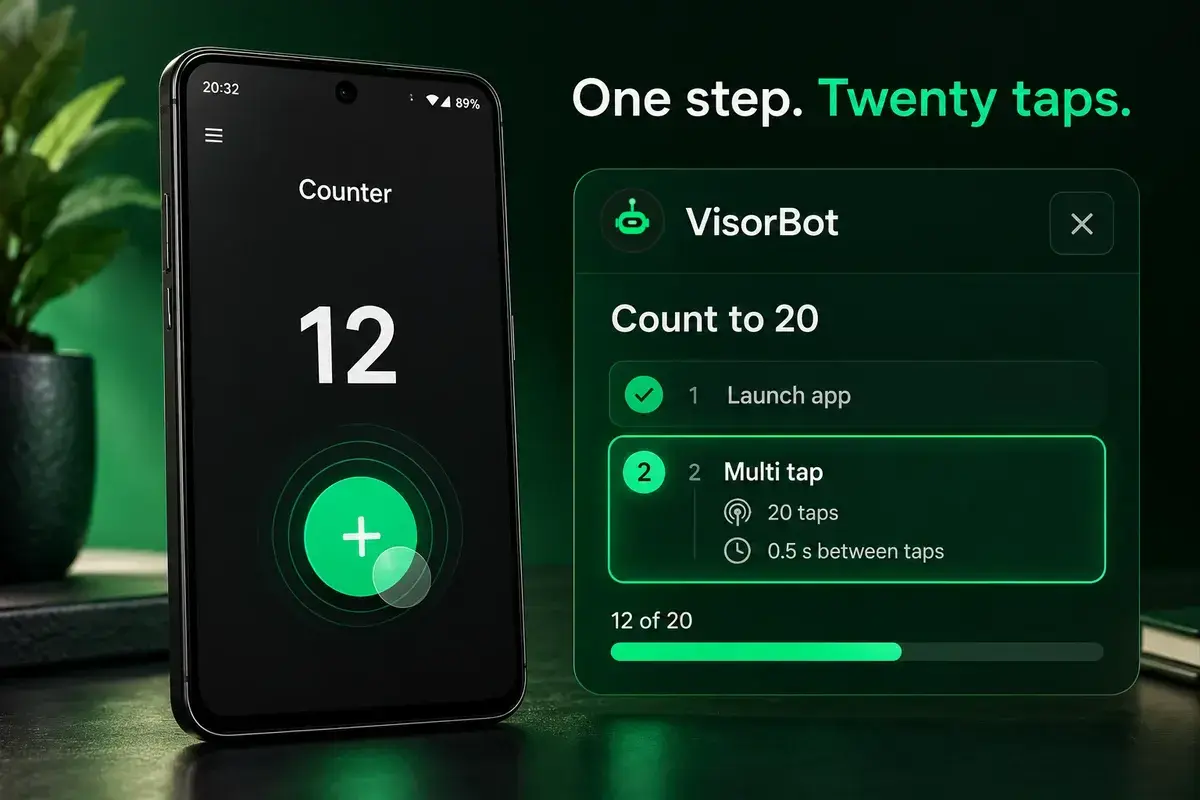
Example Multi tap settings: 20 taps with a 0.5-second gap. The counter illustrates progress through the burst. Generated product visualization; the apps and step panels are simplified.
The full guide to capturing a recipe by hand covers the other tools. You don’t have to learn all ten to make something useful.
What if the screen loads slowly?
I prefer Wait until to a fixed Wait when the next screen has a word I can recognize. A fixed pause only guesses how long loading will take. Wait until checks for the word.
For a checklist, the sequence might be:
- Launch the checklist app.
- Wait until “My lists” appears.
- Tap text on “My lists”.
Those labels are an example. Use the words your app actually shows. Choose something that belongs to the screen you need, so a label on the previous screen doesn’t tell the recipe it’s ready too early.
If a run still fails, open History before changing anything. It keeps a screenshot of the moment the step failed. That lets you distinguish a slow screen from a popup covering the button. Teach the fix can show the right target, wait longer or save a Step guard for that popup.
There’s a longer walkthrough in fixing an Android automation that stopped working.
Can I describe the task instead of recording it?
Yes. Open Describe and say what you want. Instant draft writes the steps from your description; Explore tries steps on the real app while you watch.
The AI drafts, you approve. Open the recipe card and read the steps before choosing Save or Run now. Nothing is saved until you choose to save it.
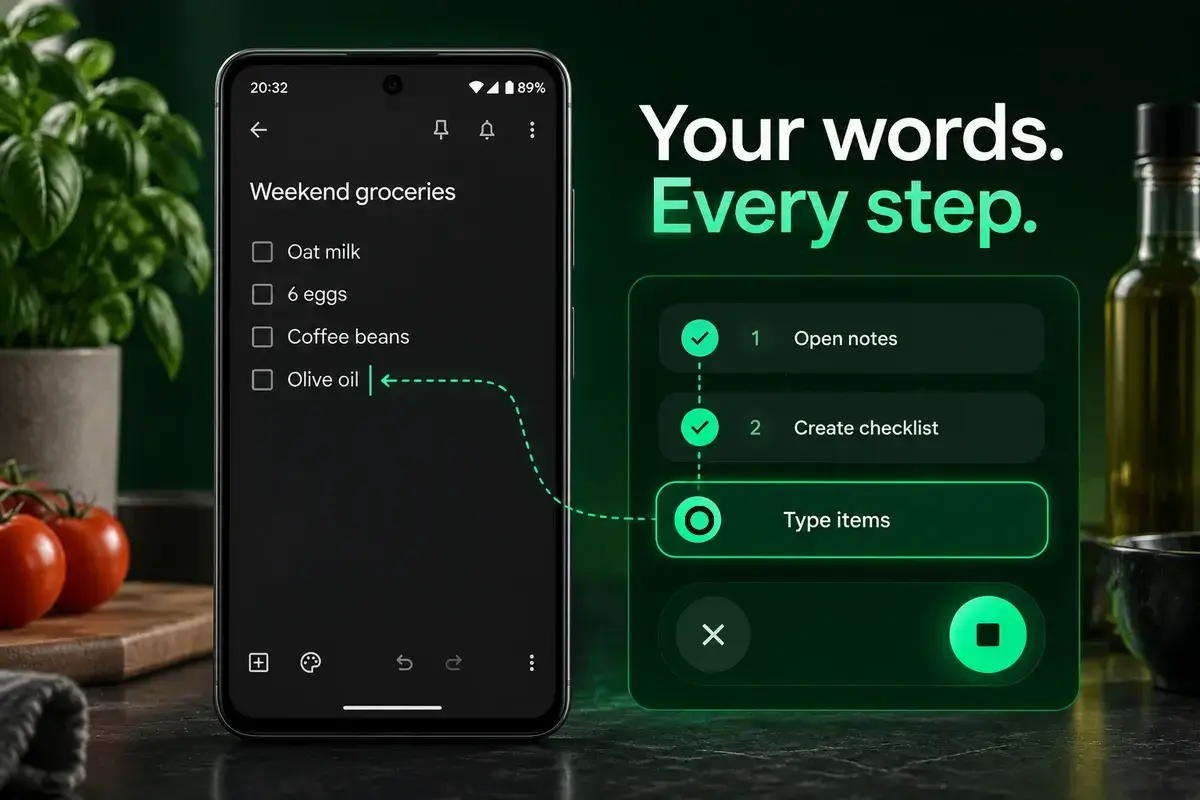
A note routine combines opening the app, creating a checklist and typing its contents. Generated product visualization; the apps and step panels are simplified.
The grocery checklist above shows the kind of task a recipe can handle. In the app, open the recipe drawer to inspect and edit its actual steps. Build with AI walks through the chat.
Recipes run only when you start them. There are no scheduled runs, background runs, cloud phones or runs with the screen off. The X on the floating run panel stops a run at once.
VisorBot never taps ads. A step that would tap or close an ad is skipped, and the run says why.
Before you build a recipe for another app, check its terms to make sure it allows automation.