
Describe is the chat in VisorBot. You type what you want, the AI drafts the steps, and you decide what happens to them. The result is a normal recipe: the same steps you could have made yourself in Capture, so you can open it, change it and run it like any other.
The AI is an assistant. It drafts, you approve. Nothing is saved, and nothing runs later, unless you do it.
Open the chat
Tap Start Overlay on the home screen, open the app you want to automate, then tap the bubble and choose Describe. The chat opens on top of the app and tells you it is ready.
Say what you want
Type the task the way you would say it to a friend. Real requests that work:
- “compose a mail to [email protected], subject: weekly report, Hi team, Everything is on track for Friday. Thanks, Sam”
- “swap to front camera and selfie me a picture”
- “make a checklist called Weekend groceries with oat milk, 6 eggs, sourdough bread, tomatoes, coffee beans and olive oil”
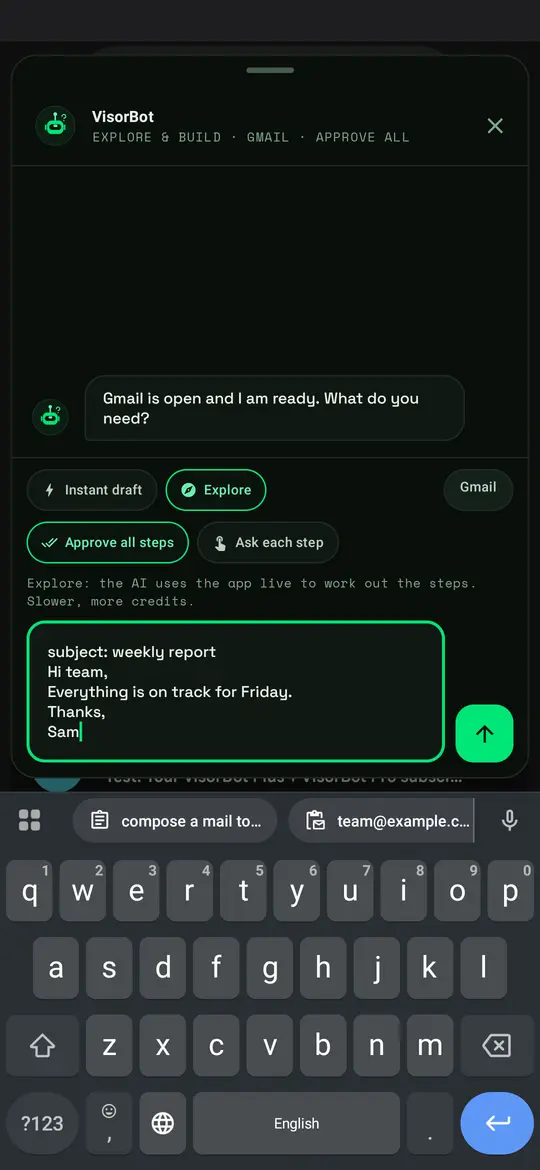
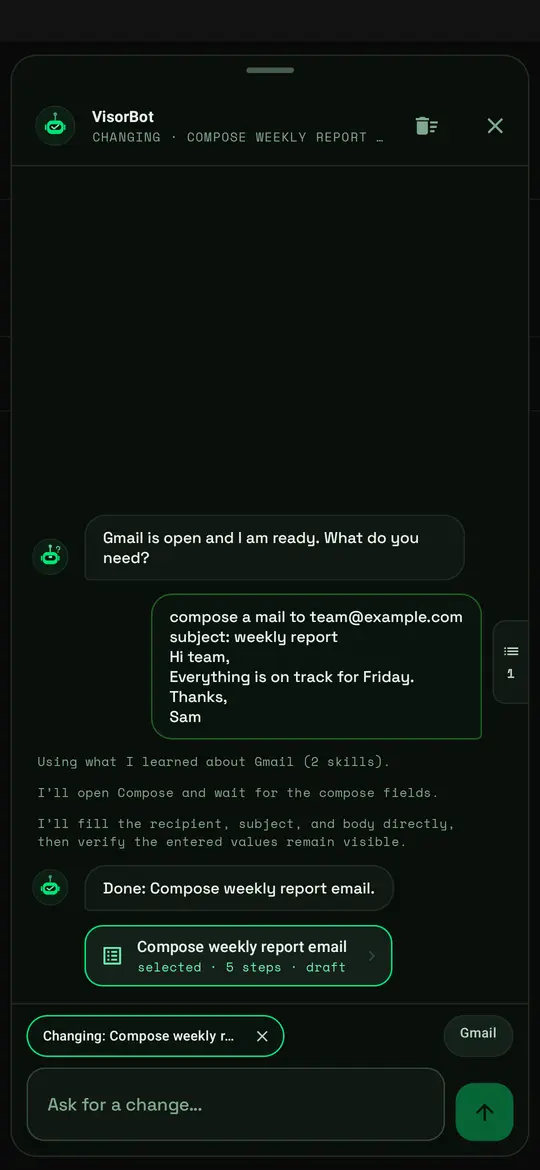
Writing a good request has the phrasing that gets it right the first time.
Say it instead of typing
Hold the bubble and say the task out loud, such as “take a selfie” or “set an alarm for 7”. There is no wake word: just hold and speak. The app asks for microphone permission the first time.
VisorBot works out which app you mean and asks if it is not sure. Your phone’s own speech recognition turns your voice into text, and VisorBot receives only the words, never the recording.
The two pairs of chips
Above the message box, two pairs of chips decide how the AI works.
| Chip | What it does |
|---|---|
| Instant draft | Writes all the steps at once from your description. Fast, fewer credits |
| Explore | Uses the app live to work out the steps. Slower, more credits, better when the task crosses several screens |
| Approve all steps | The AI tries each step without asking. This is the default, and it lasts for this one build only |
| Ask each step | The AI waits for your Yes before every action |
Whichever chip is on, a purchase, an install or a deletion always asks first. VisorBot also never taps on ads: a step that would is kept with a warning while you build and skipped when the recipe runs.
What happens during a build
- In Explore, the AI tries each step on the real app and keeps only what worked. The chat shows its short notes, such as “I’ll open Compose and wait for the compose fields”. A banner says the bot has the screen.
- The send button becomes Stop while the AI works. Steps found so far stay.
- When the AI already knows an app, the chat lists what it loaded.
- If it cannot tell which thing you meant, it asks “Which one did you mean?” and you tap the right one.
- You can also just ask a question, such as “what is on the screen?”. It answers without making a recipe.
The result: a recipe card
Each thing the AI builds leaves one card in the chat, such as “Take selfie, 3 steps, draft”.
- Tap the card to open its steps in a drawer on the right. Tap any step to edit it.
- Run now plays it, Save keeps it, Discard throws it away.
- With a card selected, whatever you type next changes that recipe: “also add butter”. With no card selected, your message is a new task.
- The chat only suggests saving when the task looks like something you would do again.
- Undo goes back up to five changes. Unsaved drafts stay on the phone for a week.
- The drawer also lists the recipes you already saved for that app, so you can change a saved recipe by talking. Saving offers to overwrite it or keep a copy.
- Drag the chat down by its handle to see the app underneath. Tap the bubble to bring it back.
When a run fails later
Apps change. When a step cannot find its target, the run stops and History keeps a screenshot of that moment. From there you can Teach the fix (show the right target once) or ask for an AI fix, which suggests a repair that you approve before it is saved.
What the AI sees
Only what is on the screen during an AI session that you start, and only after you agree to a notice in the app. It receives the text VisorBot reads on the screen, and a screenshot when vision is on for your account. That screen content is held for the session and then dropped. The privacy page has the details.
AI credits
Every AI task costs credits, and every plan includes some. Instant draft costs less than Explore. Settings shows how many you have left and when they refill. Pricing lists what each plan includes.